EmDeeTool › Guides › Read Claude Code Markdown offline
How to read your Claude Code Markdown files offline on a Mac
If you use Claude Code, Cursor, or any AI coding agent, your projects fill up with
Markdown fast: CLAUDE.md instructions, memory files, plans, changelogs and task
reports. Here's how to read all of it cleanly rendered — and completely offline — on macOS.
The problem: agent Markdown is everywhere, but hard to read
AI coding agents treat Markdown as their native format. A single session can leave behind a
CLAUDE.md at the repo root, memory and settings files under ~/.claude,
and a handful of generated plan.md and report files. Opened in a plain text editor,
these are a wall of # signs, pipe-delimited tables and fenced code — the exact things
Markdown is meant to hide. Opened in a browser-based previewer, your private project instructions
travel to someone else's server.
You want the middle path: a GitHub-quality render, on your own machine, with nothing sent anywhere.
The fix: a private, offline Markdown viewer
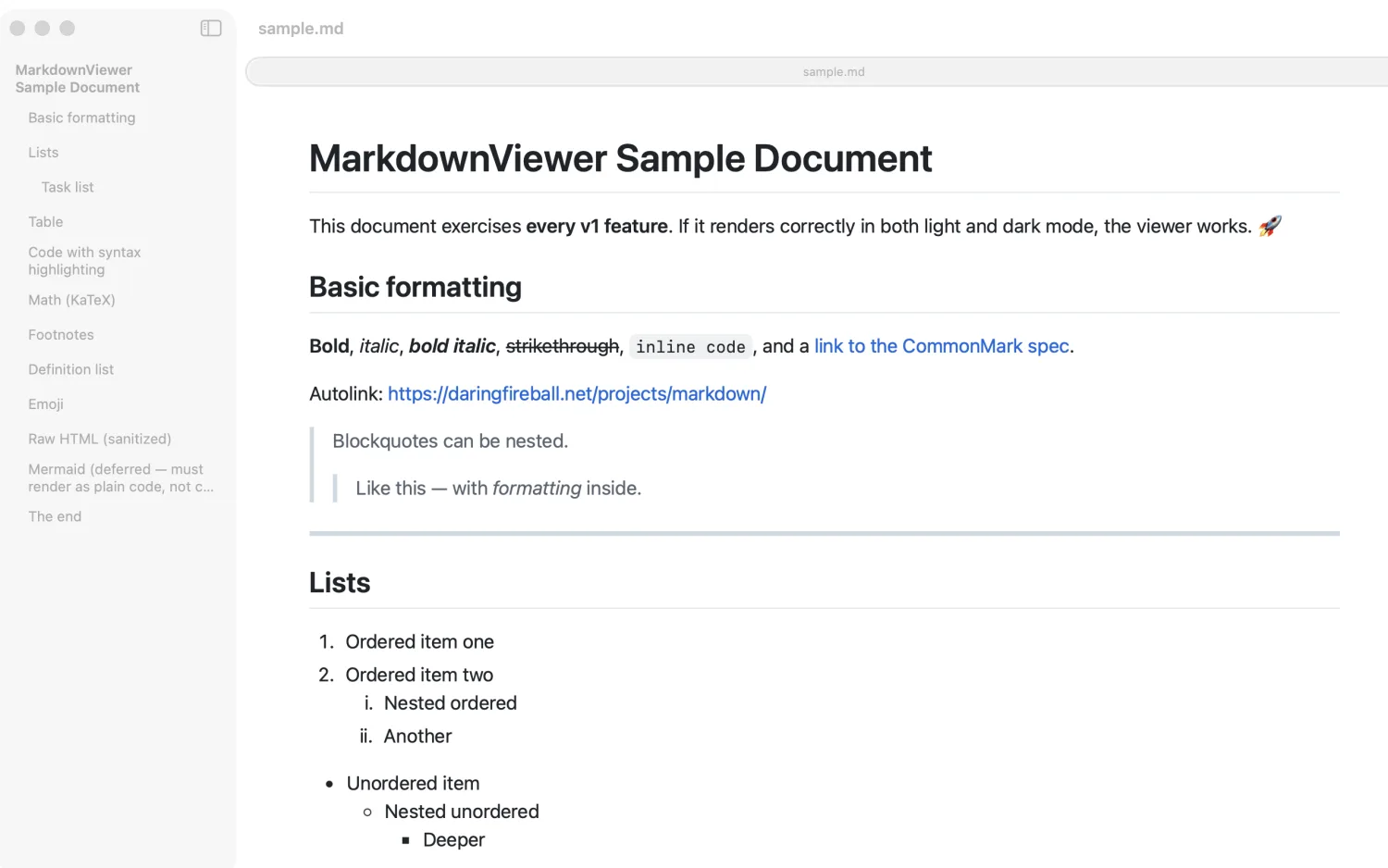
EmDeeTool is a native macOS app that renders any Markdown file exactly
the way it appears on GitHub — tables, task lists, footnotes, syntax-highlighted code and KaTeX
math — in light or dark mode. It makes no network requests, has no account, and
collects no data, so opening a confidential CLAUDE.md or an agent transcript carries
no risk of it leaving your Mac.
Three ways to open agent Markdown
- Quick Look (fastest). Select any
.mdfile in Finder and press the Space bar. EmDeeTool's Quick Look extension renders it fully — no app launch, no context switch. Ideal for glancing at aplan.mdthe moment your agent writes it. - Open With. Right-click a Markdown file → Open With ▸ EmDeeTool.
Set it as the default for
.mdto make every file open rendered. - Drag and drop. Drop a file — or use File ▸ Open (⌘O) — onto the EmDeeTool window. Live reload means edits on disk appear instantly, so you can watch a file update as your agent works.
Tip: keep EmDeeTool open on your CLAUDE.md while you work. Because
it live-reloads, every time you or your agent edits the project instructions, the rendered view
refreshes — a running, readable picture of what the agent is being told.
Why offline matters for AI work
Project instructions and agent transcripts routinely contain proprietary code, internal processes, credentials-in-prose and unreleased plans. A viewer that "just" fetches a web font or phones home for analytics is a data-exfiltration surface you didn't ask for. EmDeeTool's offline guarantee is structural — there is no networking code path in the render — so "nothing leaves your Mac" is a property of how it's built, not a promise on a marketing page.
Read your agent's Markdown, privately
Free viewer on the Mac App Store. Works entirely offline.
FAQ
Where does Claude Code store its Markdown files?
Project instructions live in CLAUDE.md at your repository root. User- and project-level memory and settings live under the ~/.claude directory in your home folder. Agents also write plans, reports and notes as ordinary .md files inside your project.
Can I preview a Markdown file without opening an app?
Yes. With EmDeeTool installed, select any .md file in Finder and press the Space bar. Quick Look renders it fully using the same engine as the app, with no app launch.
Is it safe to open proprietary CLAUDE.md files this way?
Yes. EmDeeTool makes no network requests and collects no data. Files render locally and never leave your device.